How it works
Choose a photo
Pick any JPG, PNG or WebP. An AI model estimates how far away every part of the picture is.
Shape your plaque
Set the width, relief depth and base, pick a rectangle, rounded corners or an oval, and add a raised frame if you like. The 3D preview updates as you go.
Download and print
Save an STL or 3MF and open it in your slicer. Print it flat, face up: it needs no supports.
Why it looks better than a brightness heightmap
Most photo-to-STL converters turn brightness into height: light areas rise, dark areas sink. That is why dark hair and clothes dig holes and a lawn turns into noise. PictoSculpt takes the shape from an AI depth estimate instead, and adds the photo's fine detail on top. Same photo, same settings:
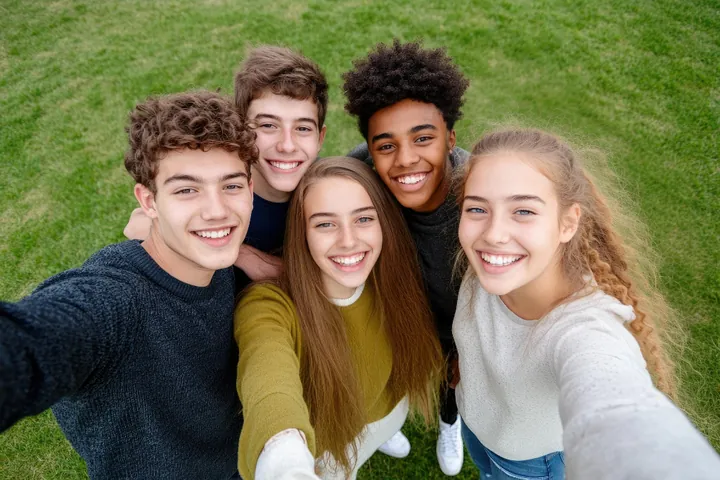
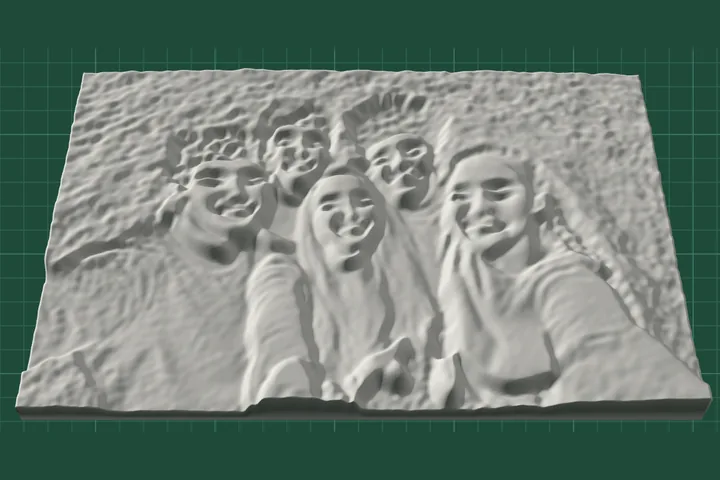
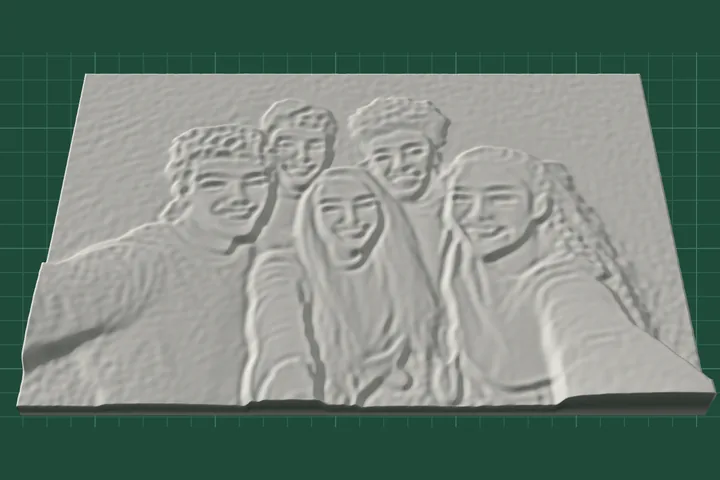
Example photo: yamu_jay on Pixabay. Both reliefs were made in this tool.
Your photo stays on your device
Everything happens in your browser. The AI model is downloaded from this site once and then kept by your browser; your photo is never uploaded, stored or seen by anyone. That makes PictoSculpt a good fit for family photos you would rather not upload anywhere.
Printing tips
- Lie it flat, relief up. The model has no overhangs, so it prints without supports.
- Use a fine layer height, around 0.1 to 0.12 mm, to keep faces and hair sharp.
- Start at 100 mm wide with a 5 mm relief. Very shallow reliefs lose detail; very deep ones look like a mask.
- Light, matte filament shows the most detail, because the relief is read by its shadows.
Questions and answers
Is PictoSculpt free?
Yes. There is no sign-up, no watermark and no limit on how many files you download.
Do you upload my photo?
No. Your photo is read and turned into a 3D model inside your browser, on your own device. It is never sent to us or to anyone else. Closing or reloading the page clears it.
Why does the first photo take longer?
The first time, your browser downloads the AI depth model (about 26 to 95 MB, depending on your device) from this site. It is kept in your browser, so later photos start in a second or two.
Which photos work best?
Photos with a clear main subject: portraits, pets, groups, buildings and objects. Busy backgrounds are fine, because the AI separates the subject from them. Line drawings currently come out as grooves rather than raised lines; a setting for raised lines is planned.
Which browsers are supported?
Recent Chrome, Edge and Safari run the AI on your graphics chip (WebGPU) and take a second or two per photo. Other browsers fall back to a slower mode on the processor, which still works but can take much longer on a phone.
How big can I make it?
Any width from 30 to 250 mm, with a relief from 0.5 to 20 mm on a base you choose. The height follows the shape of your photo, so a 4:3 photo at 100 mm wide is 75 mm tall.
Should I download STL or 3MF?
Both contain the same closed, printable model. 3MF is about five times smaller and stores millimetres, so slicers such as PrusaSlicer, Bambu Studio and OrcaSlicer always open it at the right size. STL works in every slicer and CAD program.
Can I sell what I print?
The files you make are yours and we claim no rights to them. You do need the right to use the photo itself, so use your own photos or ones whose licence allows it.